
Integrate prices into Parts-Catalogs
- Introduction
- General process of obtaining and displaying prices
- Server requirements
- Handling errors and server responses
- Localization and price format
- Performance requirements
- Integration steps
- Catalog configuration
- Response and display examples
Introduction
This guide is intended for developers and integrators who want to connect up-to-date auto parts prices to Parts-Catalogs. Here you can find information on your server requirements, the response format, and integration examples. Following the given instructions, you can display auto part prices directly on the part selection page.
The main idea of the integration is simple: when a customer looks up a part in Parts-Catalogs, the system processes a background request to your server. In this request, it sends the part parameters (such as the part number and the brand). Your server returns a JSON-response with the latest pricing information that the customer sees on the search results page.
General process of obtaining and displaying prices
- The user opens the parts selection page in Parts-Catalogs.
- The catalog sends a request to your server following the specified URL, sending the
codeandbrandparameters. - Your server returns a JSON-response with prices.
- The catalog displays the received prices on the page.
If no prices are available, you will see an "Advanced Search" link for the price search.
Server requirements
The server must:
- Process HTTP or HTTPS requests.
- Accept the mandatory
codeandbrandparameters, and an optional parametername. - Return data in the JSON format.
The server response is an array of objects, each describing one price entry. The object must contain at least:
title— the part name (string)code— the part number (string)brand— the part brand (string)price— the part price (string including the currency specification)
Below is an example of a typical server response:
[
  {
    "title": "Air filter",
    "code": "8W0133843A",
    "brand": "Audi",
    "price": "20 $"
  }
]
Handling errors and server responses
It is recommended to ensure that your server can handle the following cases
- No result: If there are no offers corresponding to the sent
codeandbrand, the server can return an empty array or a special object with themessagefield. - Request errors: In case of incorrect request parameters or internal errors, return a clear response, for example:
When doing this, use the appropriate HTTP codes: 400 for incorrect requests and 500 for internal errors.{ "error": "Invalid parameters", "message": "Parameter 'code' is missing" }
Localization and price format
For user convenience, prices must be displayed in a standardized format:
- Currency. Add the currency sign or code next to the numeric value, for example: "€12.84" or "$19.30".
- Separators. Use spaces or commas to improve the readability of large numbers, for example: "1 930" or "1,930".
- Localization. If the application will be used in different countries, ensure that the number and currency formats are easily adaptable to regional standards, so that the prices should be displayed correctly based on the user's location.
Performance requirements
The server must ensure a response time of no more than 300–500 ms. For high volumes of requests, we recommend using caching to improve performance and reduce server load. The time limit for receiving prices from the server is 30 seconds. If a response is not received within this time, the user will see an error notification.
Integration steps
- Implement an endpoint on your server (for example,
/price) that accepts thecodeandbrandparameters and returns JSON. - Verify that your server correctly responds to test requests. You can check it by accessing your endpoint directly in a browser:
https://yourdomain.com/price/
Catalog configuration
Once your endpoint is ready, you can specify the price source for your catalogs. To do this, specify the data-price-url parameter and its value with your server address when you initialize the application:
<div
  id="parts-catalog"
  data-key=""
  data-back-url="/search/?code={code}&brand={brand}"
  data-price-url="/price"
></div>
Example workflow:
- The user selects the desired part item in Parts-Catalogs.
- The catalog sends a background request to the specified URL, for example:
https://yourdomain.com/price/?code={article}&brand={brand}. - Prices are returned
- A table with prices is shown.
- When a user clicks the cart icon, they are redirected to the following address:
https://yourdomain.com/search/?code={code}&brand={brand}, where the real part number (code) and brand values are substituted.
Response and display examples
Examples of responses to a request and how they are displayed
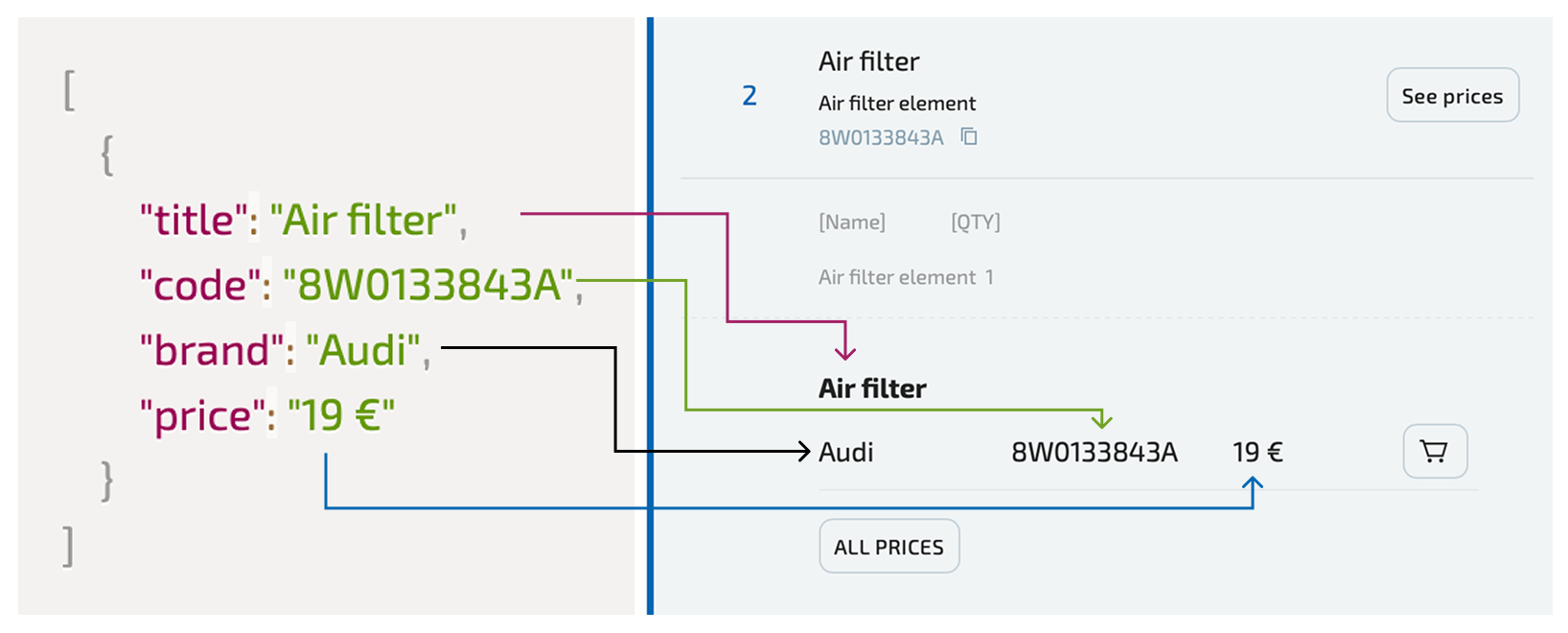
1. Response to a single requested item
In this example, the server returns only one matching item
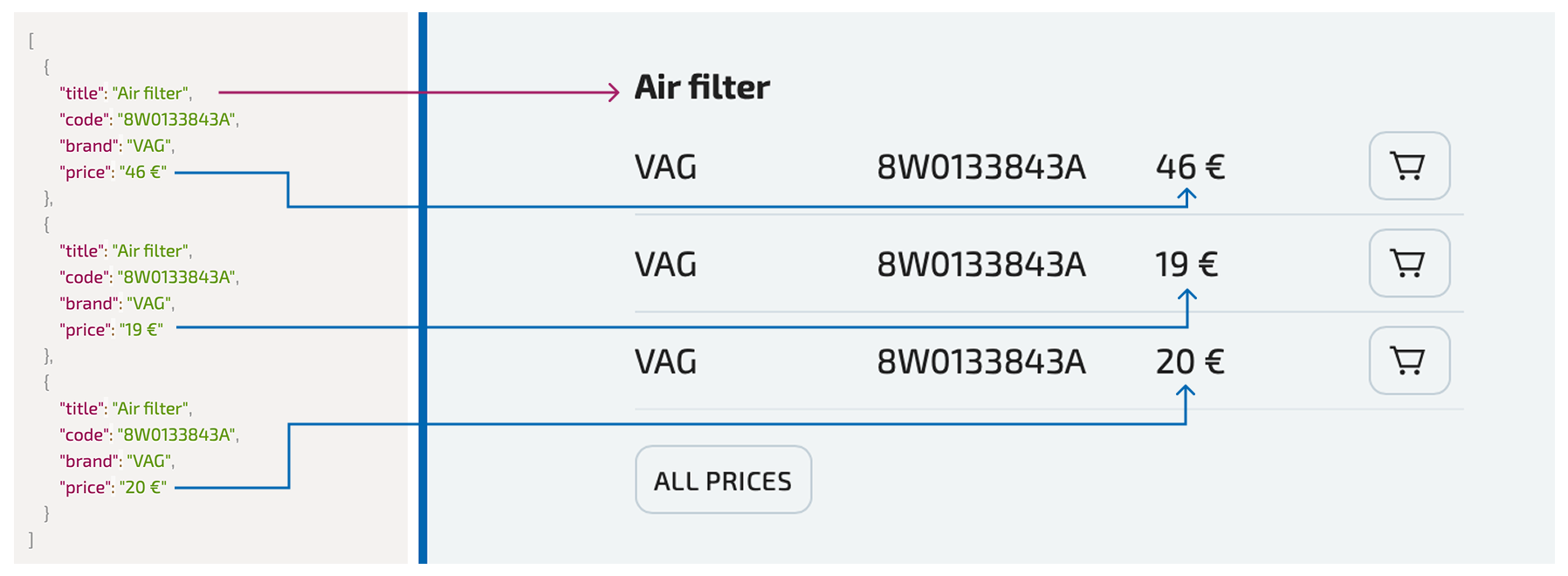
2. Multiple pricing offers
In this example, the server returns several pricing offers
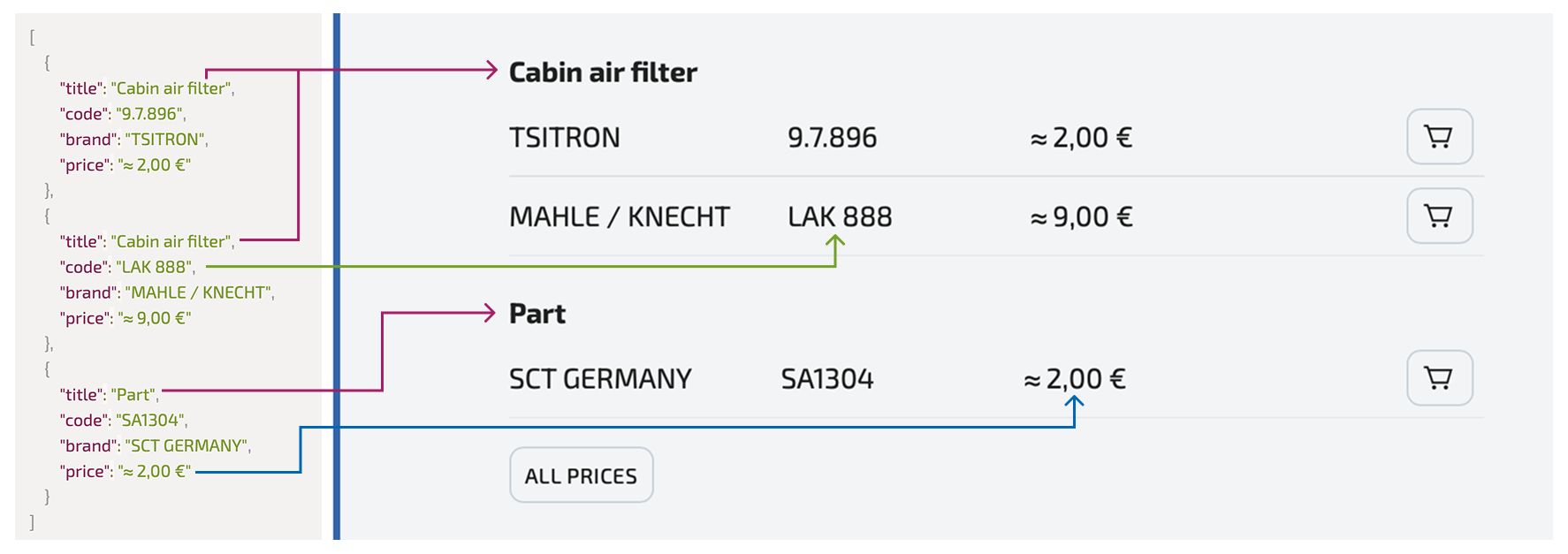
3. Data including aftermarket interchanges
In this example, the server returns different part options for the requested item, including aftermarket interchanges, as well as approximate prices
Support
Should you have any questions regarding the price integration or should you require additional assistance, please contact our Technical Support team. We are always ready to help!
📚 Additional materials: